
Performance Test Plan
The goal of this test is to measure your computer performance speed increase. During the test you will measure the following three parameters:
- Windows boot and startup time
- Overall disk access performance
- An application of your choice startup time
Requirements
It is better if you will not have the eBoostr installed before running this test. However if you have the BETA 1 version already installed and your USB drive showed slow speed and you’ve experienced a long delay during the “allocating cache” and “building cache” procedures, you can skip the step 1.1 in this plan.
1. Measure Windows boot and startup time
Unfortunately there is no automated tool available for measuring the system boot performance, so you should time it manually with the help of any stop-watch available. Experienced testers can use the “Microsoft Bootvis” application to check the boot time, however this tool is not available from Microsoft anymore, so we can not redistribute it or give you the links to download it.
1.1 Without eBoostr installed
- If you have the eBoostr already installed, please uninstall it:
- Open the “eBoostr : Control Panel”;
- Remove cache files from all devices;
- Close the “Control Panel”;
- Uninstall the product.
- Shutdown your computer.
- Prepare the stop-watch and start it when you press the “Power” button on your computer.
- Stop the timer when your system will finally load and all programs that are executed on startup are initialized.
Write down the result received.
1.2 With eBoostr installed
- Install the latest Beta version of the product;
- Add at least one cache device in the “eBoostr : Control Panel”;
- Build the cache on this device completely;
- Shutdown your computer;
- Prepare the stop-watch and start it when you press the “Power” button on your computer;
- Stop the timer when your system will finally load and all programs that are executed on startup are initialized.
Write down the result received.
2. Measure overall disk access performance
If you have skipped the first part of the test, please make sure that you have eBoostr installed and completely initialized (see 1.2)
This test is performed with an automated procedure that is trying to emulate the random read access from different files located on your system. It performs the test automatically in two phases: direct access with eBoostr cache disabled and cache enabled access.
- Start the “eBoostr : Control Panel”;
- Select the Help / Check speed menu option;
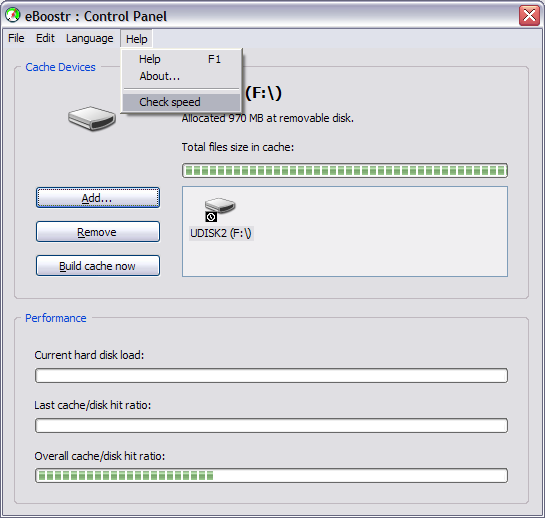
- An automated procedure will start by first trying to clear the memory system cache;
- The tool will automatically stop the eBoostr caching and measure the direct hard disk access speed during the first stage;
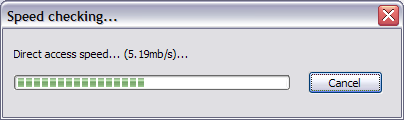
- On the second stage eBoostr is enabled and the speed measurement repeats;
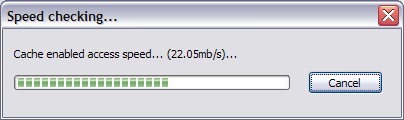
- After both tests finish you will receive the results.
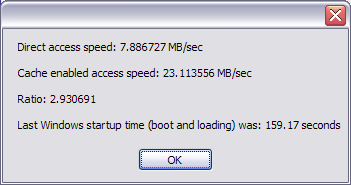
Note! There is no need to write down these results. All automatic tests performed by eBoostr save the statistics into the log file. The log file is named “measurements.txt” and located in the product installation folder (usually “C:\Program Files\eBoostr\”).
3. Measure application startup time
If you have skipped the first part of the test, please make sure that you have eBoostr installed and completely initialized (see 1.2)
We recommend you to use your favorite, most frequently executed application for this test. The results will be better if this application is loading some plugins or reads many configuration files. We recommend you the following products (surely if you have any of them installed): any of the Adobe products (Reader, PhotoShop, Illustrator, Flash etc), any of the Microsoft Office products, Mozilla FireFox browser (if you have many extensions installed) or at least your email client application.
This test is performed by an automated tool that is trying to start/close application several times with eBoostr working and disabled. Since the tool can not detect if the tested application finally loaded and initialized, the test is performed by monitoring the hard drive access activity. After the application start it begins to load its data from the disk. Our measurement tool monitors the disk activity and as soon as this activity will go down and will stay low for 15 seconds–the tool assumes the application finished loading. Please note! Try to lower the background hard disk activity and disable all background applications that can access your hard drive. Here is the list of suggested applications and devices you should temporary disable/stop:
- Stop all network activity by disabling your network card and connections;
- As soon as your network card is disabled you can safely turn off:
- Firewall software;
- Antivirus software;
- Instant messengers and other network applications.
- Any file indexing software (like Google Desktop Search) as well as Windows Indexing service;
- All other applications or/and windows services you do not need currently–be creative! ;).
eBoostr SpeedMeasure Tool
- Start the tool by selecting it in the “Start / All Programs / eBoostr” program group.
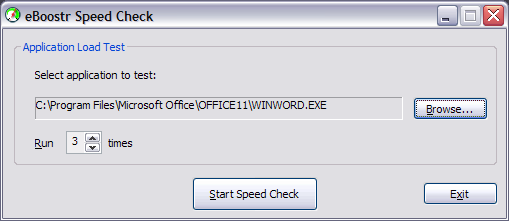
- Select the desired application by clicking the Browse… button;
- Set the desired number of test runs (the more runs the more precise results);
- Click the Start Speed Check button to begin the test;
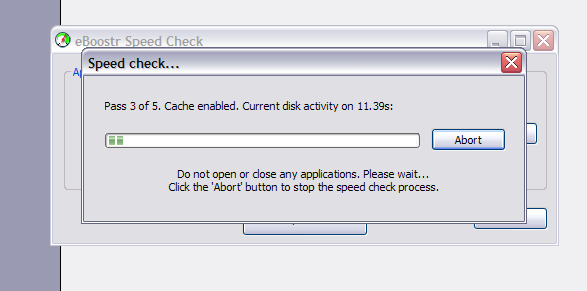
- After the program will finish the test you will receive the results.
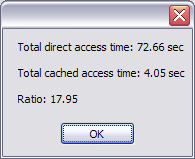
Note! There is no need to write down these results. All automatic tests performed by eBoostr are saved in the log file. The log file is named “measurements.txt” and located in the product installation folder (usually “C:\Program Files\eBoostr\”).
Submit your test results
Please use the following forms to submit your test results. The results you submitted in comments or using the feedback is hard to analyze.

Oct 04, 2007
These are my tests on my notebok Toshiba Tecra S1 Pentium M 1.8 Ghz
HD 80Gb Hitachi
USB Flash Drive: Lexar JumpDrive® Lightning 4GB
measures.txt
——
Thursday, October 04, 2007 11:37:02
Direct access speed: 2.073511 MB/sec
Cache enabled access speed: 4.989184 MB/sec
Ratio: 2.406153
Last Windows startup time (boot and loading) was: 73.14 seconds
Thursday, October 04, 2007 11:54:38
Pass 1 of 3. Direct access 106132 ms
Pass 1 of 3. Cache enabled 65584 ms
Pass 2 of 3. Direct access 91892 ms
Pass 2 of 3. Cache enabled 61588 ms
Pass 3 of 3. Direct access 101997 ms
Pass 3 of 3. Cache enabled 75479 ms
Total direct access time: 300.02 sec
Total cached access time: 202.65 sec
Ratio: 1.48
Thursday, October 04, 2007 12:49:27
Direct access speed: 1.950531 MB/sec
Cache enabled access speed: 4.186062 MB/sec
Ratio: 2.146114
Last Windows startup time (boot and loading) was: 93.98 seconds
Oct 04, 2007
Oppps I miss windows boot time measured:
W/o eboosrt 71s
W eboosrt 79s
Oct 04, 2007
Oppps again.
I will resend the tests on the special feedback form when it will be available.
Sorry
Oct 05, 2007
Athlon XP 2 GHz; ddRAM 1 GB; IDE Hard Drive 160GB Maxtor; Flash Drive Size – 1 GB kingstone
Beta 2
installation: OK
caching: OK
running: OK
faster xp and programs, but after installation firefox doesnt work. why?
Oct 05, 2007
Joepsy, please stop the caching (from the “Edit” menu) and check if firefox can be started.
Do you receive any error messages?
Oct 05, 2007
Bootvis used for all these tests (Option: Next boot).
############################
### ###
### I have 2 pendrives ###
### a) S3+ 256MB ###
### b) (NoBrand) 2GB ###
### ###
############################
1) LAPTOP – Compaq Presario 2700ea (P3 1000 2x256MB HD_Hitachi_DK23FA-40GB USB 1.1):
It took a long time cos the slow CPU/HD and cos many things were starting:
WinVNC4, dumeter, logmeinsystray, realsched, ituneshelper, simplite-msn, myspaceim + Symantec Antivirus (and other stuff)
Normal boot: 301 seconds
Than I installed Beta 2, installed pendrive, cached files than: REBOOT.
1A) 256MB pendrive – Cache size: 249MB
New time for boot: 235 (-21%)
1B) 2GB pendrive – Cache size: 512MB
New time for boot: 235 (same as 1A)
1C) 2GB pendrive – Cache size: 1024MB
New time for boot: 233
———————————————————
I used configuration 1C for the following tests.
pendrive b)
Friday, October 05, 2007 17:38:10
Direct access speed: 1.205565 MB/sec
Cache enabled access speed: 2.796705 MB/sec
Ratio: 2.319828
Last Windows startup time (boot and loading) was: 277.16 seconds
Last startup was 233 misured with bootvis, I don’t undestan this 277.16.
Maybe I should select in bootvis the second option “Next boot and driver delays”, I donnow…
If u are interested, I save all the bis of those tests and u can check the situation.
BUG in Eboostr speed check:
When I select to run the test more than 9 times,
while I select am arrow I see the number with 2 digits, when I release it
show the digit on the right only.
i.e. 15 is showed as 5 or 23 is showed as 3
—————————————-
Here is my measures.txt
I donnow if my results can be trusted.
Looks like there are too many differences in the same test executed more times.
Stainberg Wavelab, WTF?
Friday, October 05, 2007 18:07:26
Pass 1 of 10. Direct access 10505 ms
Pass 1 of 10. Cache enabled 0 ms
Pass 2 of 10. Direct access 0 ms
Pass 2 of 10. Cache enabled 0 ms
Pass 3 of 10. Direct access 0 ms
Pass 3 of 10. Cache enabled 0 ms
Pass 4 of 10. Direct access 0 ms
Pass 4 of 10. Cache enabled 0 ms
Pass 5 of 10. Direct access 181 ms
Pass 5 of 10. Cache enabled 0 ms
Pass 6 of 10. Direct access 0 ms
Pass 6 of 10. Cache enabled 0 ms
Pass 7 of 10. Direct access 0 ms
Pass 7 of 10. Cache enabled 0 ms
Pass 8 of 10. Direct access 0 ms
Pass 8 of 10. Cache enabled 0 ms
Pass 9 of 10. Direct access 0 ms
Pass 9 of 10. Cache enabled 0 ms
Pass 10 of 10. Direct access 0 ms
Pass 10 of 10. Cache enabled 0 ms
Total direct access time: 10.69 sec
Total cached access time: 0.00 sec
Ratio: 1.#J
———
Gimp:
Friday, October 05, 2007 18:52:19
Pass 1 of 5. Direct access 25697 ms
Pass 1 of 5. Cache enabled 43603 ms
Pass 2 of 5. Direct access 36412 ms
Pass 2 of 5. Cache enabled 28050 ms
Pass 3 of 5. Direct access 51033 ms
Pass 3 of 5. Cache enabled 33598 ms
Pass 4 of 5. Direct access 24506 ms
Pass 4 of 5. Cache enabled 57263 ms
Pass 5 of 5. Direct access 42601 ms
Pass 5 of 5. Cache enabled 23294 ms
Total direct access time: 180.25 sec
Total cached access time: 185.81 sec
Ratio: 0.97
—————–
CoolEdit
Friday, October 05, 2007 19:08:11
Pass 1 of 2. Direct access 14531 ms
Pass 1 of 2. Cache enabled 36963 ms
Pass 2 of 2. Direct access 16945 ms
Pass 2 of 2. Cache enabled 20399 ms
Total direct access time: 31.48 sec
Total cached access time: 57.36 sec
—————-
I will test eBoostr on better HW soon, if u need to know something other on this LAPTOP, feel free to ask.
Regards
Oct 07, 2007
I have Windows XP x64 Edition, program (Beta2 setup) installed flawlessly, i restarted.
Choosed the onboard “ASAP” Flash device on my ASUS M2N32-SLI Premium Vista Edition mainboard. Absoulutely no speed increase here, something ain’t workin’ right.
It says it allocated the 491MB disk for cache.
If i choose build cache, it says
“Building cache (0%)…”
then it suddenly disappears.
Also the speed test function Help menu/Check speed gives erroneus results.
Direct Acess Speed: -1.#IND00 MB/sec
Cache enabled Acess Speed: -1.#IND00 MB/sec
Ratio: -1.#IND00
Last windows startup time (boot and loading): 34.78 sec
Any ideas what to check?
Oct 07, 2007
i have a ACER 5100 with a AMD TURION 64 MK-36 2.0 GHZ Here are speeds Ie6 takes a little longer to load My system loadtime was about 90s with out eboost
Sunday, October 07, 2007 16:07:18
Direct access speed: 0.000000 MB/sec
Cache enabled access speed: -1.#IND00 MB/sec
Ratio: -1.#IND00
Last Windows startup time (boot and loading) was: 25078.28 seconds
Sunday, October 07, 2007 16:12:58
C:\Program Files\outlook express\msimn.exe
Total direct access time: 0.00 sec
Total cached access time: 0.00 sec
Ratio: -1.#J
Sunday, October 07, 2007 16:33:04
Direct access speed: 5.160964 MB/sec
Cache enabled access speed: 2.797526 MB/sec
Ratio: 0.542055
Last Windows startup time (boot and loading) was: 0.00 seconds
Sunday, October 07, 2007 16:43:07
C:\Program Files\Outlook Express\msimn.exe
Pass 1 of 3. Direct access 18859 ms
Pass 1 of 3. Cache enabled 25578 ms
Pass 2 of 3. Direct access 17859 ms
Pass 2 of 3. Cache enabled 11719 ms
Pass 3 of 3. Direct access 33016 ms
Pass 3 of 3. Cache enabled 5281 ms
Total direct access time: 69.73 sec
Total cached access time: 42.58 sec
Ratio: 1.64
Oct 08, 2007
I have a desktop HP Pentium 4 3.0GHz 2GB, WinXP SP2
Verbatim 4GB , configured with 1GB cache
Monday, October 08, 2007 15:33:00
Direct access speed: 3.115230 MB/sec
Cache enabled access speed: 6.711965 MB/sec
Ratio: 2.154565
Oct 08, 2007
CPU: AMD Athlon 64 3200+ @ 2.01 GHz
Memory: 1024 MB PC3200 CL3
Harddisk: Hitachi Deskstar 160 GB, 8 MB cache, 7200 RPM
USB Flash Drive: Sandisk Cruzer Micro U3 512 MB
Monday, October 08, 2007 17:38:34
Direct access speed: 4.946422 MB/sec
Cache enabled access speed: 11.320777 MB/sec
Ratio: 2.288680
Last Windows startup time (boot and loading) was: 238.81 seconds
Oct 08, 2007
I have a desktop HP Pentium 4 3.0GHz 2GB, WinXP SP2
usb drive Verbatim 4GB , configured with 1GB of eboostr cache
Monday, October 08, 2007 15:54:55
C:\Program Files\Microsoft Visual Studio 8\Common7\IDE\devenv.exe
Pass 1 of 4. Direct access 85985 ms
Pass 1 of 4. Cache enabled 26688 ms
Pass 2 of 4. Direct access 48782 ms
Pass 2 of 4. Cache enabled 22046 ms
Pass 3 of 4. Direct access 62297 ms
Pass 3 of 4. Cache enabled 13031 ms
Pass 4 of 4. Direct access 46468 ms
Pass 4 of 4. Cache enabled 29110 ms
Total direct access time: 243.53 sec
Total cached access time: 90.88 sec
Ratio: 2.68
Oct 08, 2007
ok i am running a AMD Turion 64 on windows xp mce
at 2.0 ghz with 1.5 gig of ddr2 ram.with a lexar 1 gig sd card. i have found that programs start slower when the eboost is loaded at 1st but as the system stabilizes the programs start to run faster i ran these test with every thing running. internet and all background programs running and there is a inprovment. here are the results these numbers get better the longer you you leave the card or flash drive in .
Monday, October 08, 2007 10:49:48
Direct access speed: 5.586268 MB/sec
Cache enabled access speed: 2.082575 MB/sec
Ratio: 0.372803
Last Windows startup time (boot and loading) was: 134.67 seconds the 1st time i ran the test it was 25.0452 seconds fot this these numbers are from fresh install of eboost
Monday, October 08, 2007 10:56:26
Direct access speed: 6.829017 MB/sec
Cache enabled access speed: 2.075095 MB/sec
Ratio: 0.303864
Last Windows startup time (boot and loading) was: 134.67 seconds
Monday, October 08, 2007 11:03:00
C:\Program Files\Outlook Express\msimn.exe
Pass 1 of 5. Direct access 13875 ms
Pass 1 of 5. Cache enabled 6016 ms
Pass 2 of 5. Direct access 9547 ms
Pass 2 of 5. Cache enabled 5828 ms
Pass 3 of 5. Direct access 9719 ms
Pass 3 of 5. Cache enabled 5453 ms
Pass 4 of 5. Direct access 8062 ms
Pass 4 of 5. Cache enabled 5531 ms
Pass 5 of 5. Direct access 6344 ms
Pass 5 of 5. Cache enabled 6796 ms
Total direct access time: 47.55 sec
Total cached access time: 29.62 sec
Ratio: 1.61
Oct 08, 2007
Please do not submit your results here as comments, use the special forms. It will be hard to analyze the data.
Oct 09, 2007
This programme is amazing my windows startup time is down to 38seconds really great stuff