
How to report “blue screen” (BSOD) error?
Please note! We can not fix your BSOD problem if you will not send us the needed memory dump file. Without this file we are unable to determine whether the problem was caused by eBoostr or other software you have installed on your computer.
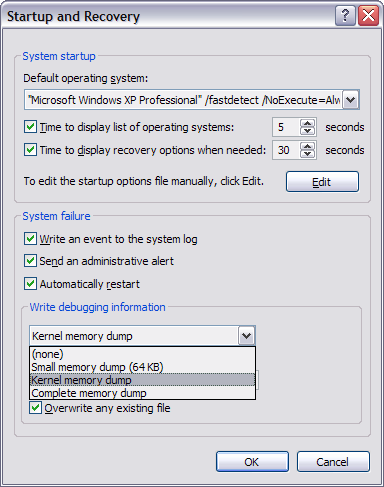
Enable kernel memory dump on system failure
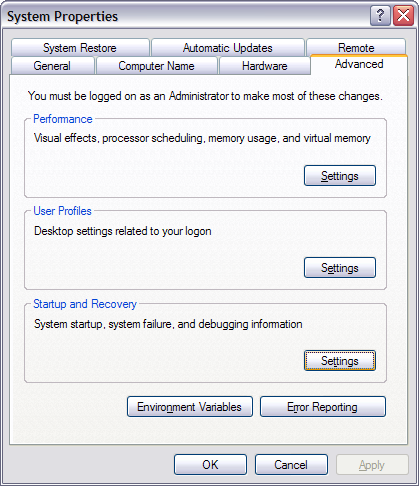
- Open the system properties (either by going to Start – Settings – Control Panel – System or right-clicking on My Computer icon and selecting Properties);
- On the Advanced tab click the Settings button in the Startup and Recovery section;
- From the drop-down menu select the Kernel memory dump option;
- click OK to confirm settings and close the window.
Reproduce BSOD
During the system failure the needed memory dump will be written to the file “C:\Windows\memory.dmp” (its size depends on the amount of memory you have installed).
After the computer restarts please find this file. If you computer fails to restart and you are always getting the blue screen on reboot, then please load the Windows in “Safe Mode” and locate the file “memory.dmp”.
If you can not find this file in the “C:\Windows\” folder, please check the “C:\Windows\System32\”.
Archive this file (ZIP, RAR, whatever) and send it to our email: beta@eboostr.com (if it is less than 10MB in size) otherwise please upload this file http://drop.io/eboostr. If you have additional details or steps to reproduce this error, please post it in the Beta Feedback blog or as a comment to this page. Please include the link to your post in your email with the memory dump.
Thank you!
